CrossLink is integrated with PayJunction. Simply follow the instructions below to connect CrossLink with your PayJunction.
Process Overview
I. Activate PayJunction Smart Terminals
II. Create PayJunction API Credentials
III. Save the API credentials in CPTS-Ecom Wallet
I. Activate PayJunction Smart Terminals
Instructions to activate PayJunction Smart Terminals can be found here:
Smart Terminal Installation Setup
II. Create PayJunction API Credentials
- Log into your PayJunction account as an administrator. Then go to More, and select API Credentials.
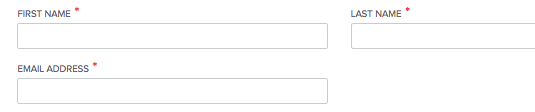
In the top-right corner of this view, click the Create New API Credential button. - Enter a First Name, Last Name and an Email Address.
To ensure that report titles lineup properly between PayJunction and CrossLink, please use the following format:- FIRST NAME: "CrossLinkAPI"
- LAST NAME: nameOfYourBusiness (can be abbreviated if needed, just don't use spaces)
-
EMAIL ADDRESS: noreply@payjunction.com:
- Create a new unique Username and Password.
- For the Username: Use the same First and Last name listed above separated by underscore (Ex: "CrossLink_nameOfYourBusiness").
- For the Password: Use at least 12 characters, with at least one uppercase, one lowercase and one number:
Select the account that will be used by CrossLink Practice Also select the account in the Default Credit Card Account drop-down.
- Click the Create button at the bottom of the page to save the new API credentials.
III. Save the API credentials in CPTS-Ecom Wallet
-
Navigate to your wallet via Crosslink Software then to the “Program Services” tab and enter click on “Click to Enter PayJunction Account Information”:
-
Enter in the PayJunction API user information that was generated in step II-3:
Your wallet is now setup to utilize both Plaid ACH and Remote Invoicing.
For additional assistance, please contact PayJunction support: 800-601-0230