The AUM POS is already integrated with PayJunction. Simply follow the instructions below to connect AUM POS with your PayJunction account.
Process Overview
1. Create PayJunction API Credentials
-
Log into your PayJunction account as an administrator. Then go to More, and select API Credentials.
In the top-right corner of this view, click the Create New API Credential button. -
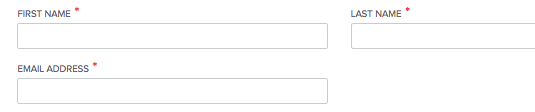
Enter a First Name, Last Name and an Email Address.
To ensure that report titles lineup properly between PayJunction and The AUM POS, please use the following format:
- FIRST NAME: "AUMPOS"
- LAST NAME: nameOfYourBusiness (can be abbreviated if needed, just don't use spaces)
- EMAIL ADDRESS: noreply@payjunction.com
-
Create a new unique Username and Password.
- For the Username: Use the same First and Last name listed above separated by underscore (Ex: "AUMPOS_nameOfYourBusiness").
-
For the Password: Use at least 12 characters, with at least one uppercase, one lowercase and one number.
Select the account that will be used by AUM POS. Also select the account in the Default Credit Card Account drop-down.
- Click the Create button at the bottom of the page to save the new API credentials.
2. Save the PayJunction API in AUM POS.
- Click on Setting > Payment Connector.
- Type the API User and Password created in PayJunction:
- Click Save, and you will see the PayJunction Smart Terminal and Terminal Id information:
- Click the > arrow pointing out to select the PayJunction Smart Terminal you want to use:
- Click the > arrow pointing out to select the PayJunction Terminal ID you want to use:
-
If you have additional questions, please contact our support:
- PayJunction: 800-601-0230
- AUM PoS: 630-854-6553