Rentopian System is integrated with PayJunction. Simply follow the instructions below to connect Rentopian with your PayJunction account.
Process Overview
1. Create PayJunction API Credentials
-
Login to your PayJunction account as an administrator, go to More, then select API Credentials.
-
In the top-right corner of this view, click the Create New API Credential button.
-
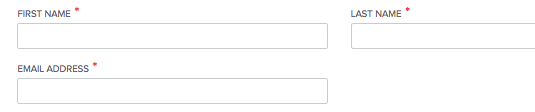
Enter a First Name, Last Name and an Email Address
To ensure that report titles lineup properly between PayJunction and Rentopian, please use the following naming convention:- FIRST NAME: "Rentopian"
- LAST NAME: nameOfYourBusiness
-
EMAIL ADDRESS: noreply@payjunction.com
-
Create a new unique Username and Password.
For the Username: Use the same First and Last name listed above separated by underscore (Ex: "Rentopian_nameOfYourBusiness" .
For the Password: Use at least 12 characters, with at least one uppercase, one lowercase and one number. -
Select the account that will be used by Rentopian.
Also select the account in the Default Credit Card Account drop-down.
If you have multiple locations, you can create one Restricted API credential per location, instead of one single API with Admin permission. That will allow you to have reports broken down by Location.
- Click the Create button at the bottom of the page to save the new API credentials
2. Save the PayJunction API Credentials in Rentopian
- Log into Rentopian with an Administrator User.
-
On the main menu on the left, click on Settings then Financial/Payment.
-
In the Financial Settings screen, click on Payment Gateway.
-
Click on Add to new location, select the location from the dropdown, then click on the " > " arrow:
-
Select PayJunction, then type the API credentials created on step 2-4, then click on Update Payment Gateway.
For the Require Billing Address checkbox, we recommend checking the box AND updating your PayJunction API AVS settings to match Address OR Zip only using the instructions below:
https://support.payjunction.com/hc/en-us/articles/115006054287-How-to-update-security-settings-for-Hosted-Payments-and-API
If you're having trouble with connecting the terminal to Rentopian, contact 855-933-3355