Softbase Evolution is integrated with PayJunction. Simply follow the instructions below to connect payFURL with your PayJunction account.
Process Overview
I- Create the API Credentials in the PayJunction portal.
II- Create a Hosted Payments Shop
III- Save the PayJunction credentials in Softbase Evolution
I- Create PayJunction API Credentials
- Log in to your PayJunction account as an administrator.
Towards the bottom of the left navigation bar, select More, and then click API Credentials.
-
In the top-right corner of this view, click the Create New API Credential button.
- Enter a First Name, Last Name, and an Email Address.
To better identify in PayJunction, activity coming from these Softbase API credentials, we recommend using this naming convention:- FIRST NAME: "SBEvolution"
- LAST NAME: nameOfYourBusiness (can be abbreviated if needed, just don't use spaces)
-
EMAIL ADDRESS: noreply@payjunction.com
- Create the Username and Password.
- Login: Use the same First and Last name listed above separated by underscore (Ex: "SBEvolution_nameOfYourBusiness") .
-
Username: Use at least 12 characters, with at least one uppercase, one lowercase, and one number.
-
If you only have one account, you can skip this section.
If you have multiple accounts, make sure to assign the permission and DEFAULT to the account that will be used by Softbase Evolution. - Click the Submit button at the bottom of the page to save the new API credentials.
II- Create a Hosted Payments Shop
- Log into your PayJunction account as an Administrator, go to More, then select Hosted Payments.
- On the upper right of the screen click on New Shop.
- For the SHOP NAME: Use EvolutionShop_name_of_your_location.
- On the EMAIL NEW ORDERS TO field you can have up to 3 emails (comma separated) to notify you when a transaction is approved.
- Check the Email PayJunction Receipt to Customer checkbox.
- Click on the Submit button at the bottom of the page.
- Adjust the security settings (AVS and CVV) for the Hosted Payment and the API:
- Click on More button on the lower left side of the screen.
-
Then click Accounts.
-
Select the account you want to work on.
-
The following steps need to be done for the PayJunction API and Hosted Payments.
- Click EDIT on the right hand side.
-
Choose the type of security settings you wish to toggle. We recommend the following configuration:
- Click Submit.
III- Save the PayJunction credentials in Softbase Evolution
Settings > Administration > Company
- Navigate to Company Setup and then the CC tab:
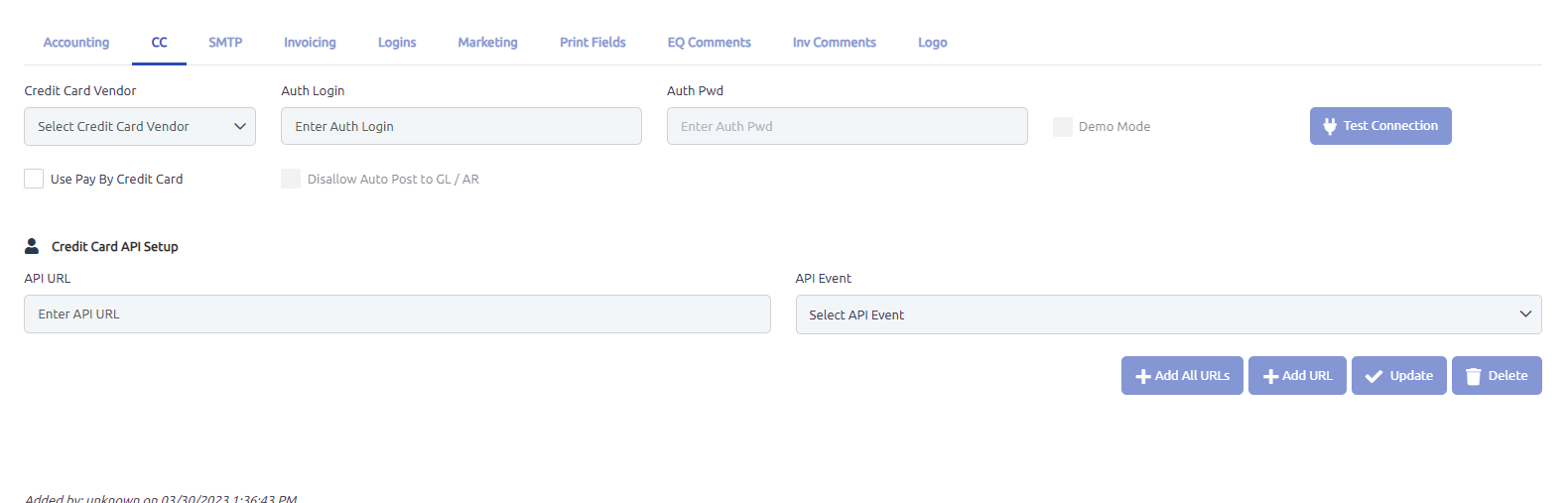
-
In the CC tab:
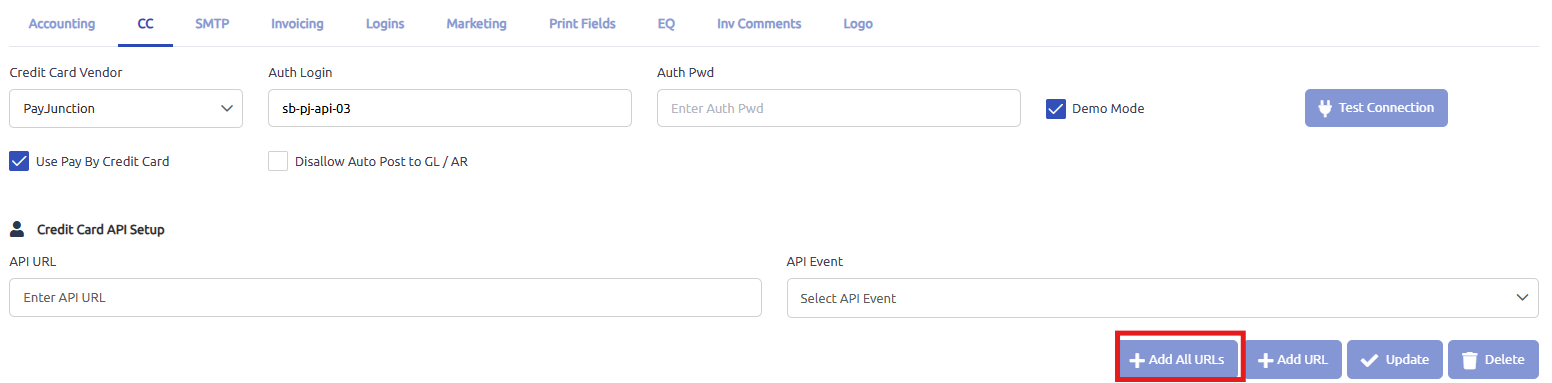
Use Pay by Credit Card: CheckedCredit Card Vendor: PayJunction
In the Auth Login and Auth Pwd fields type in the credentials created on step I
Disallow Auto Post to GL/AR: leave unchecked. This should only be checked if you do not want the system to post the payment to AR/ the GL account setup on the branch/department record automatically.
Click Test Connection.
NOTE: SELECT The SAVE Button to save changes BEFORE CONTINUING SETUP.
- Setup Credit Card API Webhooks
API URL – This is the listener endpoint used by Softbase Connect for your company, enabling communication between PayJunction and Softbase Evolution. Please work with your IT team or Softbase Support to obtain the correct Softbase URL to enter here.
Select this button to add all four API Webhook with a single button click.
API Webhook – Select the API Webhook to add from this field. API Webhook can be one of the following:
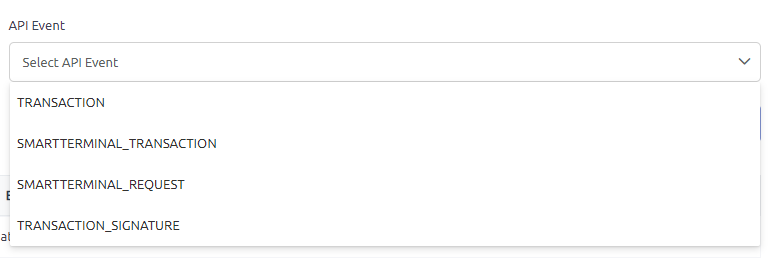
When adding events individually, populating this field along with the API URL will enable the Add URL button.
Select the Add URL button to add the API Webhook.
Selecting an existing API Webhook will enable the Delete button.
Changing the URL in the API URL field will enable the Update button.
Settings > Administration > Branch
- Select the Finance tab:
- Store Name: Enter the Shop Name created in PayJunction (step II).
- Credit Card Debit Account #: Account number needed for posting to the GL (i.e. the Cash account / Bank account). The Account selected in this field must be a valid account number from the Chart of Accounts. To select an existing account, click the search button next to the field.
NOTE: Credit Card Account Debit Account # is required at either the Branch or Department level.
- Repeat step 1 for each Branch, even if the field entries are the same.
Settings > Administration > Department
NOTE: Only complete this setup if the Credit Card Account # is different at the Department level.
Select the Department
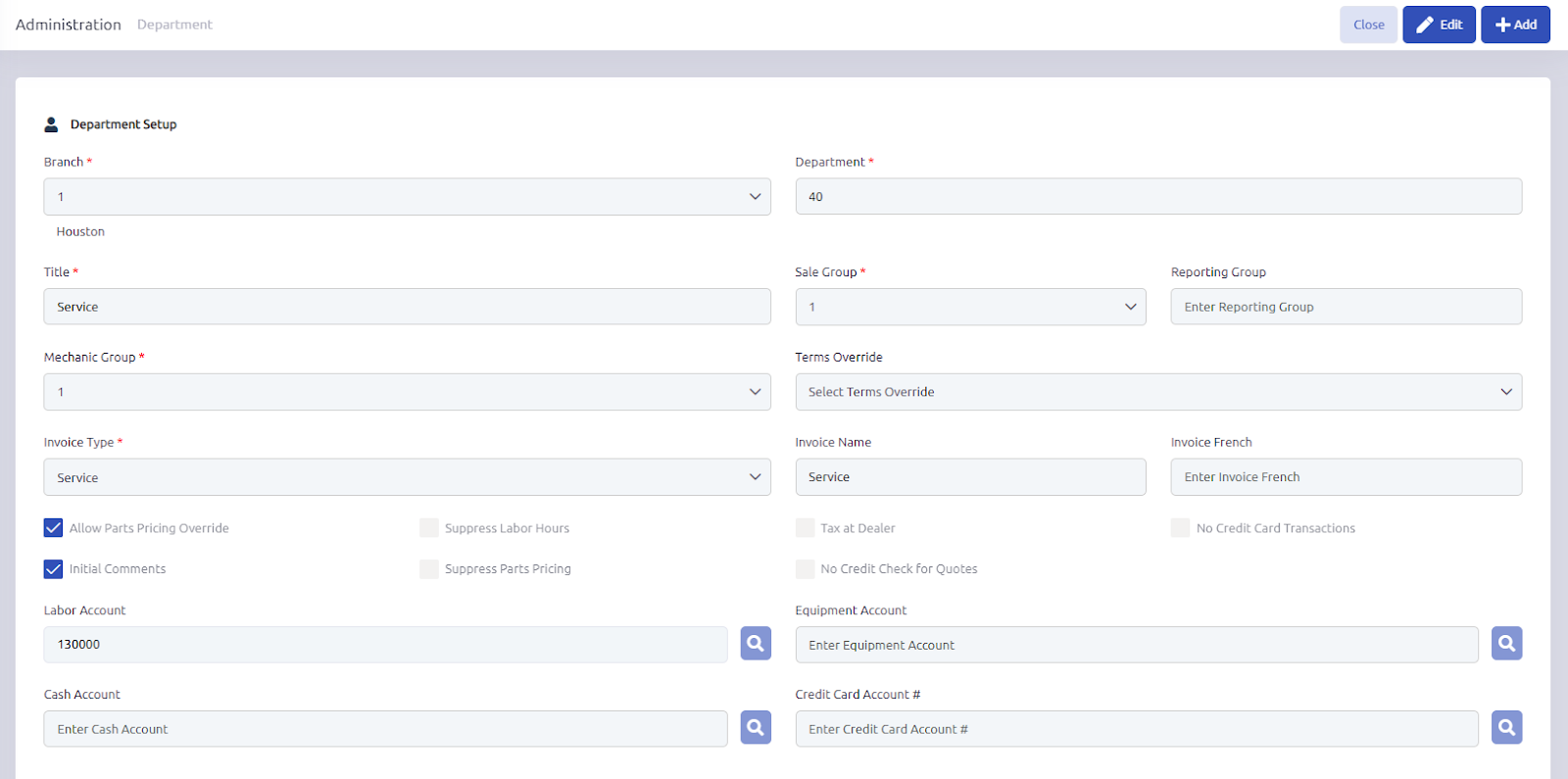
Credit Card Account # - Account number needed for posting to the GL (i.e. the Cash account / Bank account). The Account selected in this field must be a valid account number from the Chart of Accounts. To select an existing account, click the search button next to the field.
NOTE: This Setup will override the Credit Card Account # in the Branch setup.
NOTE: Departments that do not contain a Credit Card Account # will revert to the Branch setting. Therefore, it is important that the Branch Credit Card Debit Account # also contains a valid account number.
Settings > Administration > AR Terms
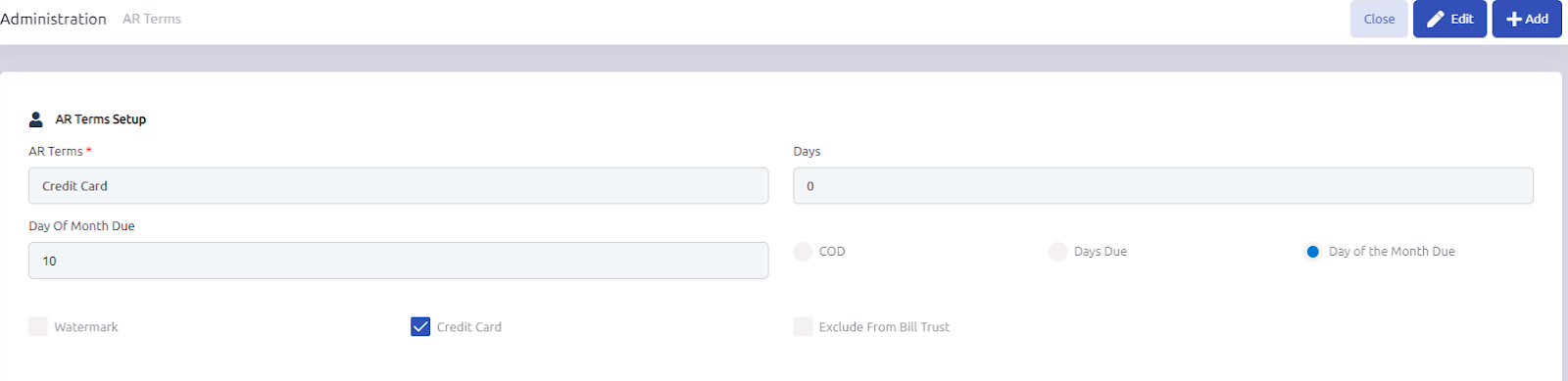
- Create or select an existing AR Terms that you want to be used to process Credit Cards with.
- Set the Credit Card Checkbox to checked.