Follow the instructions bellow to connect your Pryme Practice account to your PayJunction account.
Process Overview
1. Create PayJunction API Credentials
- Log into your PayJunction account as an administrator. Then go to More, and select API Credentials.
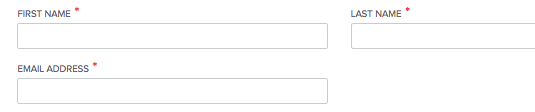
In the top-right corner of this view, click the Create New API Credential button. - Enter a First Name, Last Name and an Email Address.
To ensure that report titles lineup properly between PayJunction and Pryme Practice, please use the following format:- FIRST NAME: "Pryme"
- LAST NAME: nameOfYourBusiness (can be abbreviated if needed, just don't use spaces)
-
EMAIL ADDRESS: noreply@payjunction.com:
- Create a new unique Username and Password.
- For the Username: Use the same First and Last name listed above separated by underscore (Ex: "Pryme_nameOfYourBusiness").
- For the Password: Use at least 12 characters, with at least one uppercase, one lowercase and one number:
Select the account that will be used by Pryme Practice Also select the account in the Default Credit Card Account drop-down.
- Click the Create button at the bottom of the page to save the new API credentials.
2. Save the PayJunction API in Pryme Practice.
- On the upper right, click on your user, then "Office Management":
- Click on the "Settings" menu:
- Click on "Payment Gateways":
- Click the "+" (plus) sign:
- Type in the API Username and Password, then click "Submit":
Note: the Webhook Secret and Publishable Key values should be left blank.
If you have additional questions, please contact our support:
- PayJunction: 800-601-0230
- Pryme Practice: info@prymepractice.com